How StepWise works, step by step.
From your goal pool to year two: what happens at each step, who does it, and what they see.
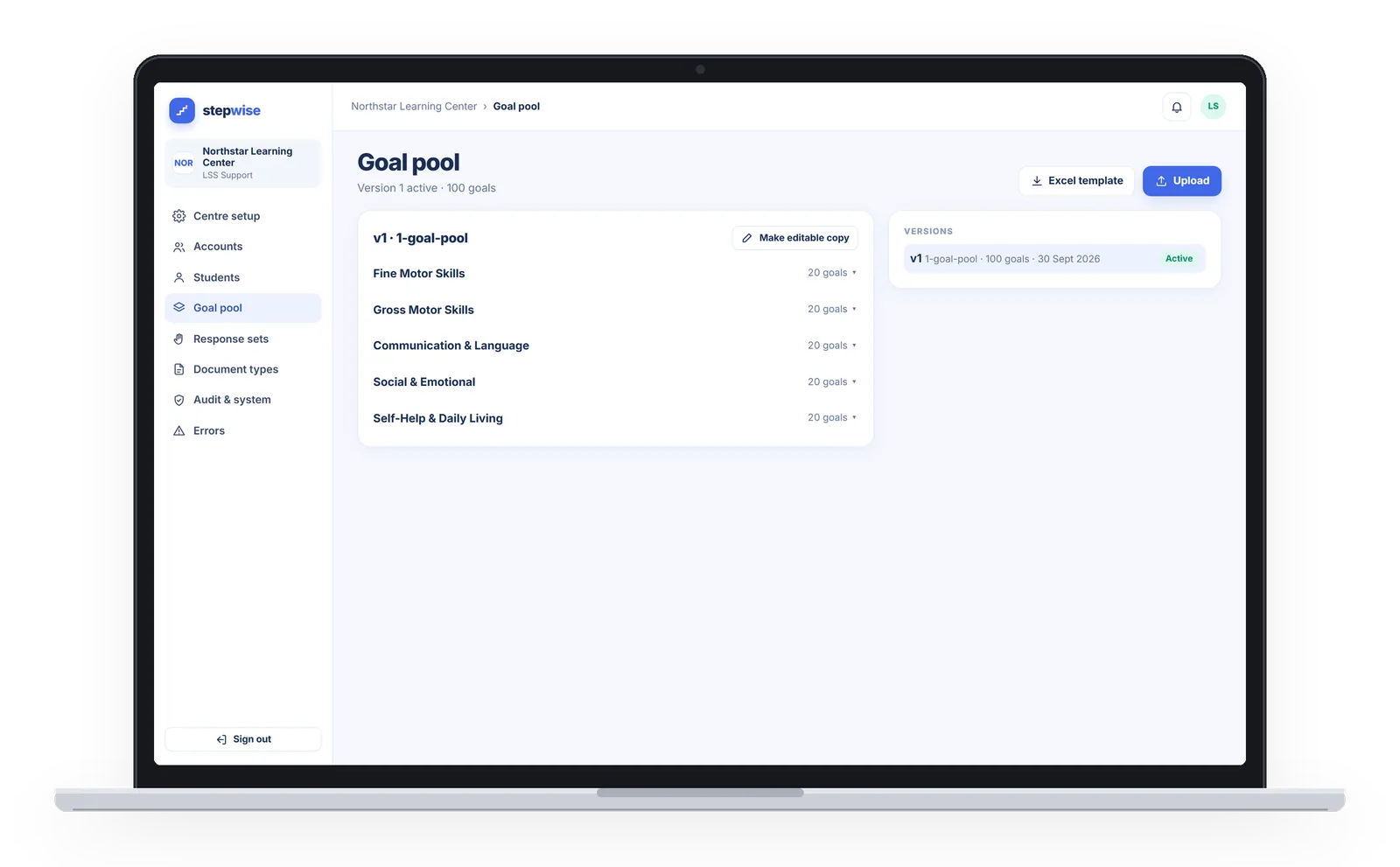
Your goal pool and accounts
Before the first plan, Lite Software Solutions (LSS) sets up your centre with you.
LSS, with your centre- Your goal pool comes from your own curriculum. We agree it with you in meetings, you confirm it, and LSS loads it from an Excel or CSV template.
- Staff, students and parents are imported from Excel templates.
- Response sets (counts, durations, yes/no) and document types are set up for your centre.
- Every goal StepWise suggests later comes from this pool, and only from this pool.
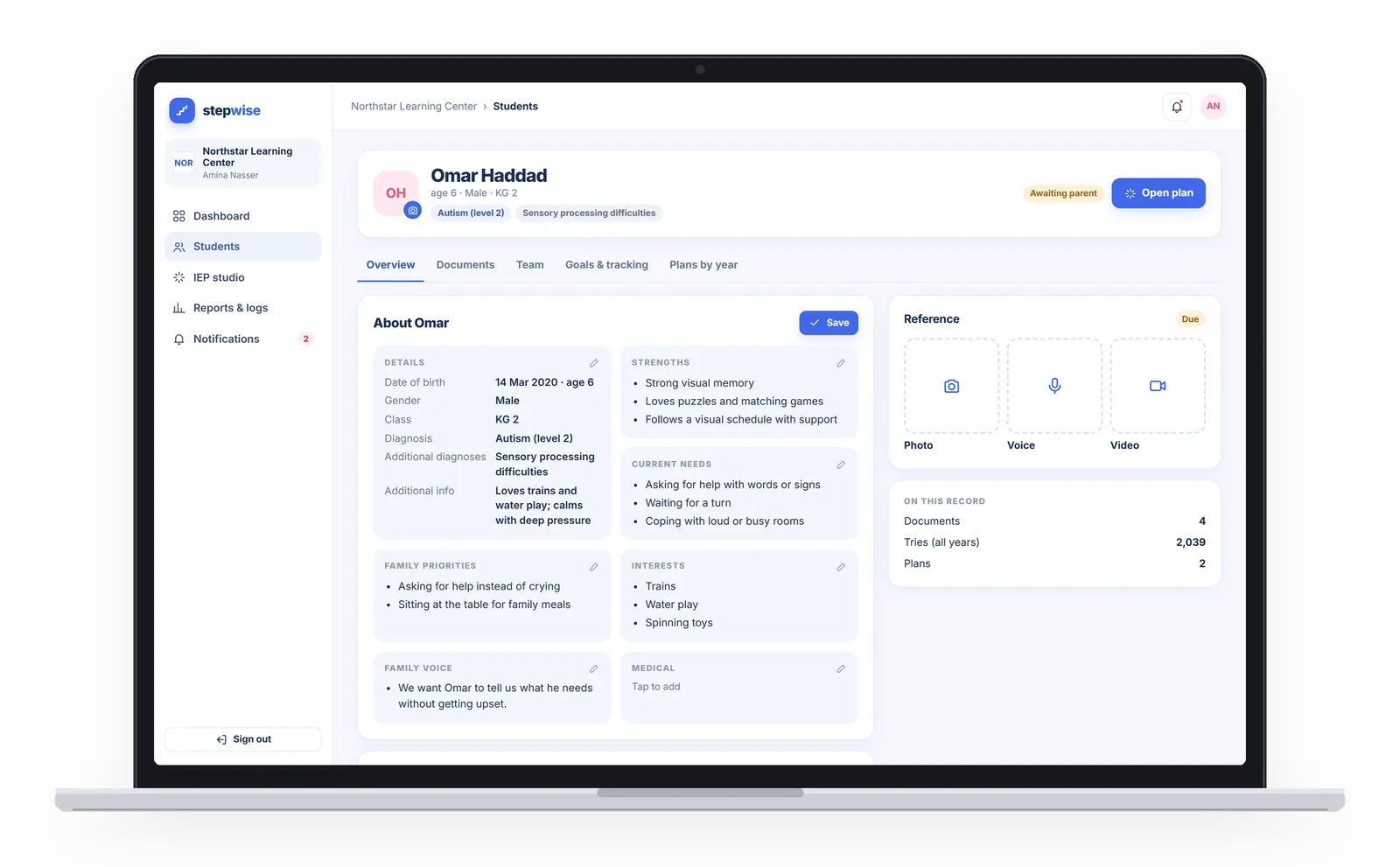
One record for each student
Everything about a student lives in one place.
Centre admin and IEP coordinator- Profile and team: who the student is, and who works with them.
- Documents, filed by year, month and type.
- Access follows the team. Staff see only the students on their teams, and parents see only their own children.
Documents, read by code first
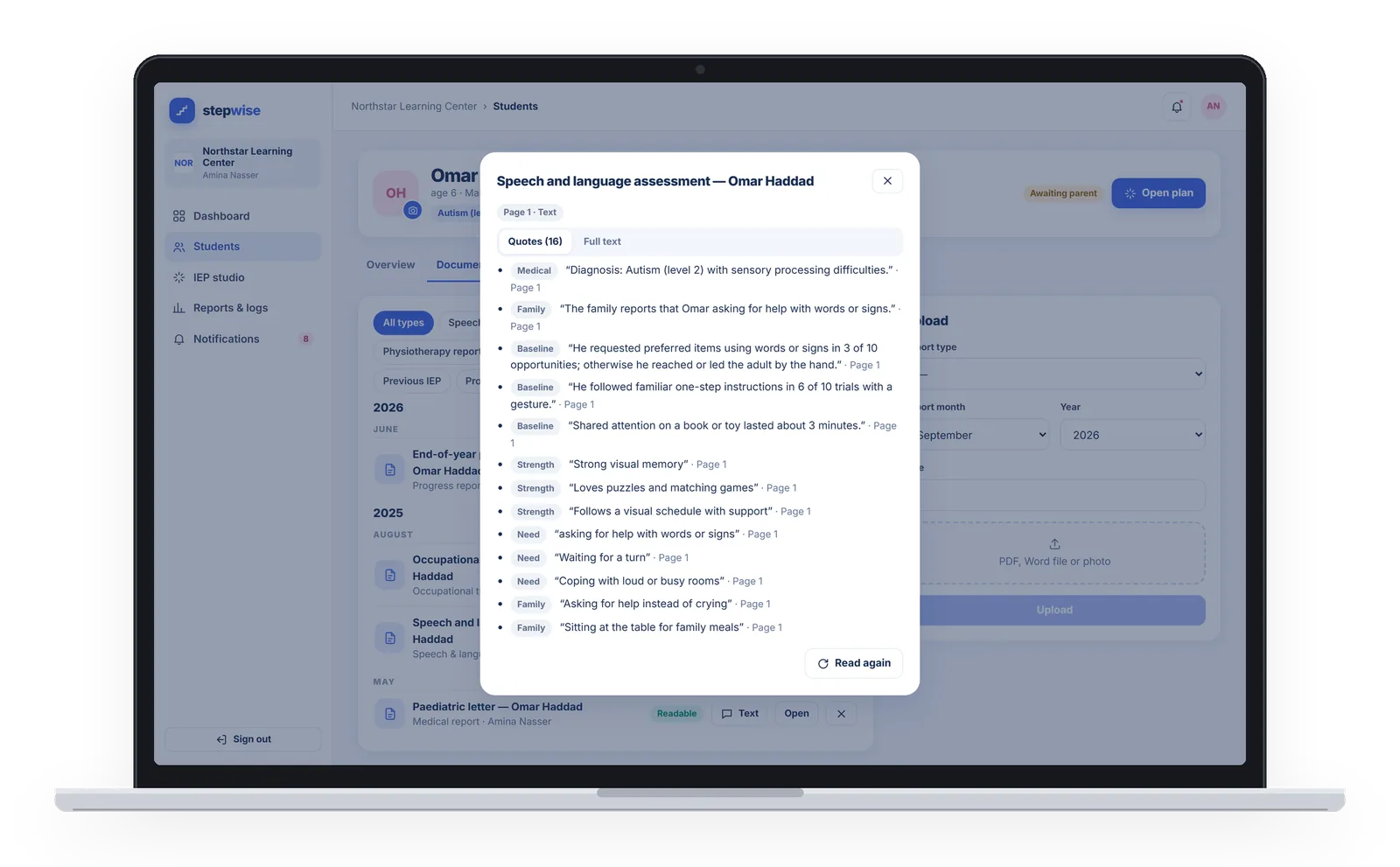
Assessment reports and past IEPs become text you can check, before any AI step.
Automatic, inside your centre’s deployment- Code reads each document first: the text layer, then OCR in English and Arabic for scans.
- Fact cards are exact quotes from that text. Code drops any quote that is not really in the document.
- When an AI step uses a document, only its text is sent, with names, contact details, ID numbers and addresses replaced first, never the file itself.

The IEP studio, in six stages
The coordinator builds each plan here. The AI drafts where it helps; a person decides at every stage.
IEP coordinator, then parents and staff-
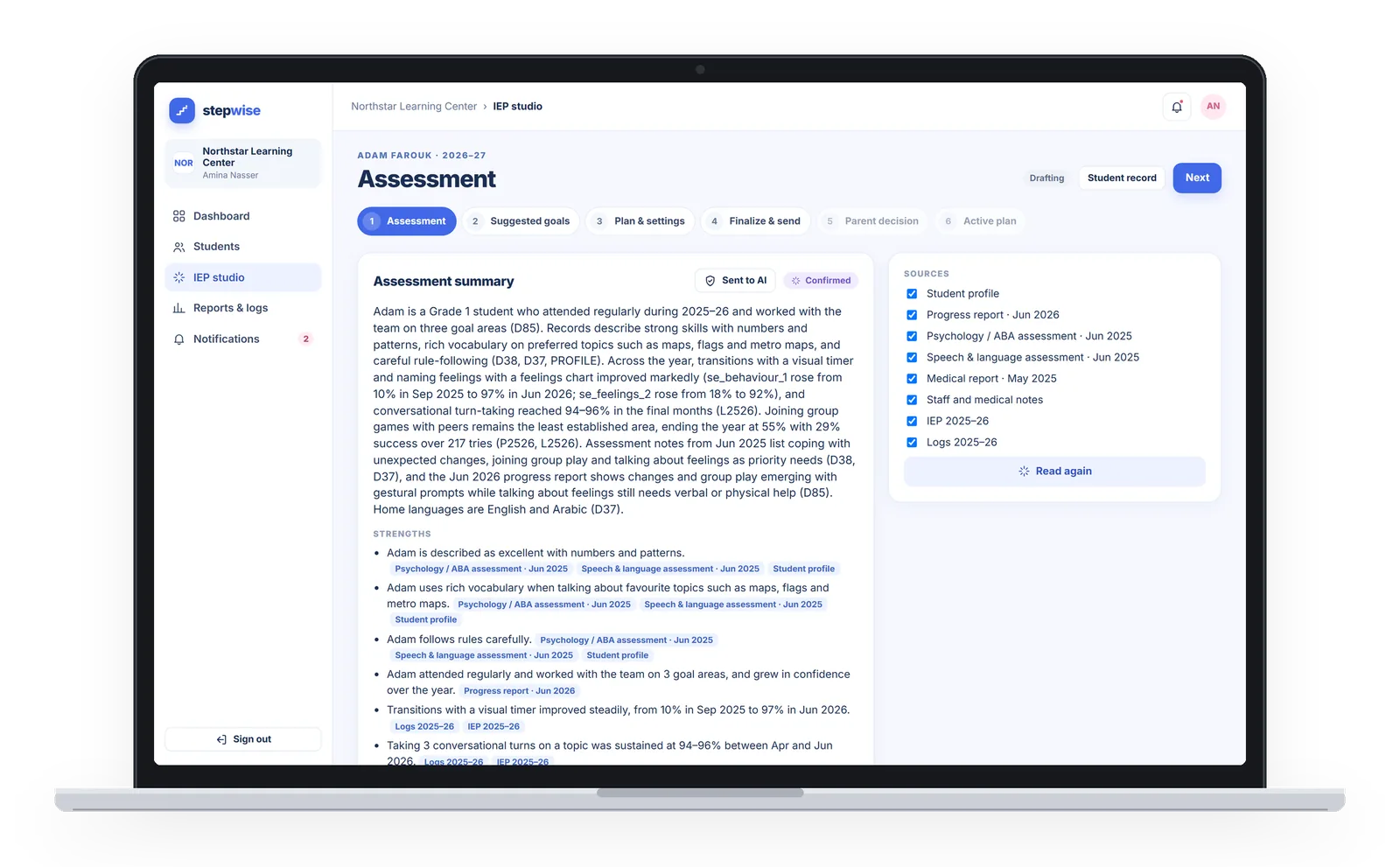
Stage 1
Assessment
An AI summary that cites its sources. The coordinator edits it and confirms it.
-
Stage 2
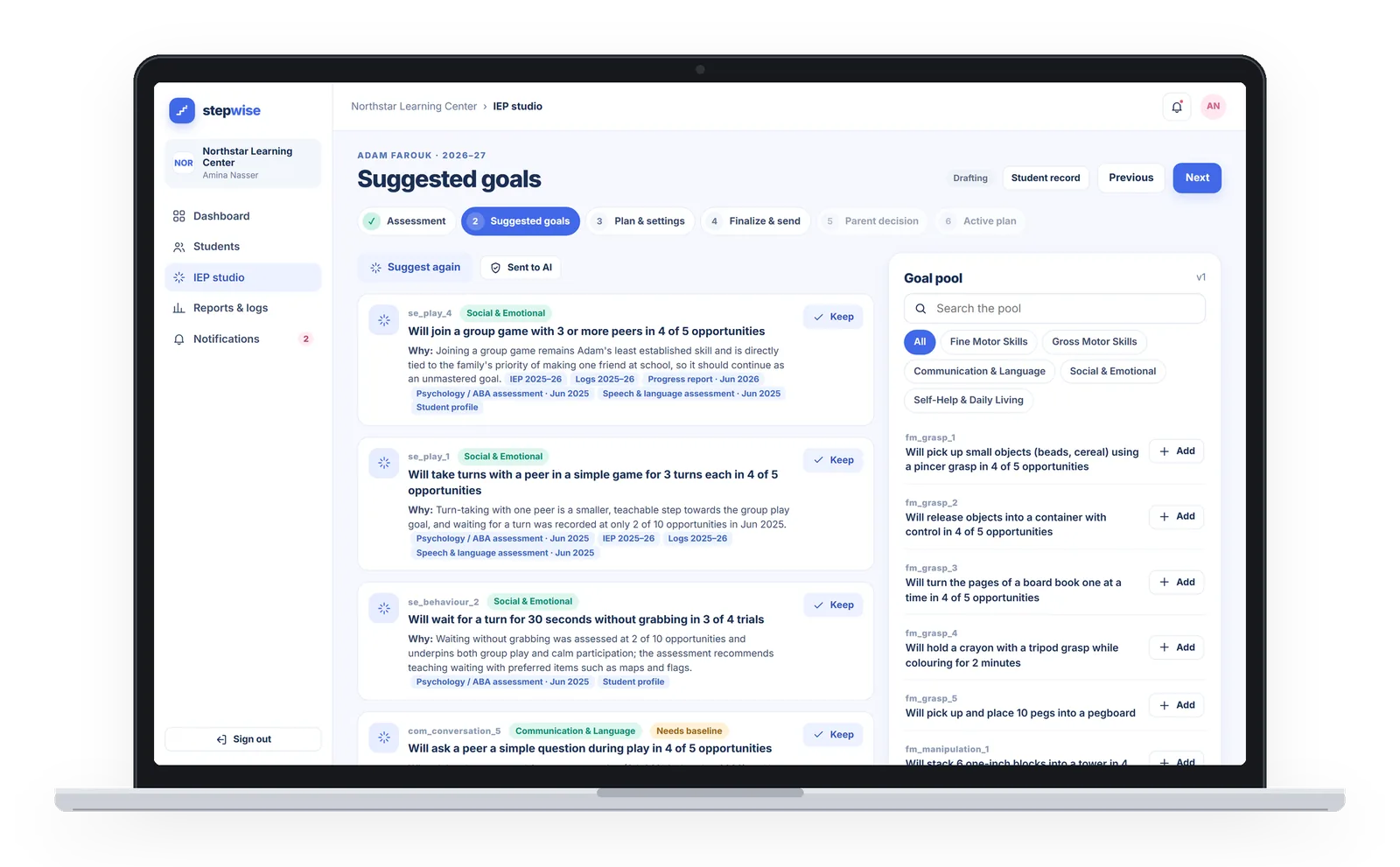
Suggested goals
Goals suggested only from your centre’s own pool, each with a reason and its sources.
-
Stage 3
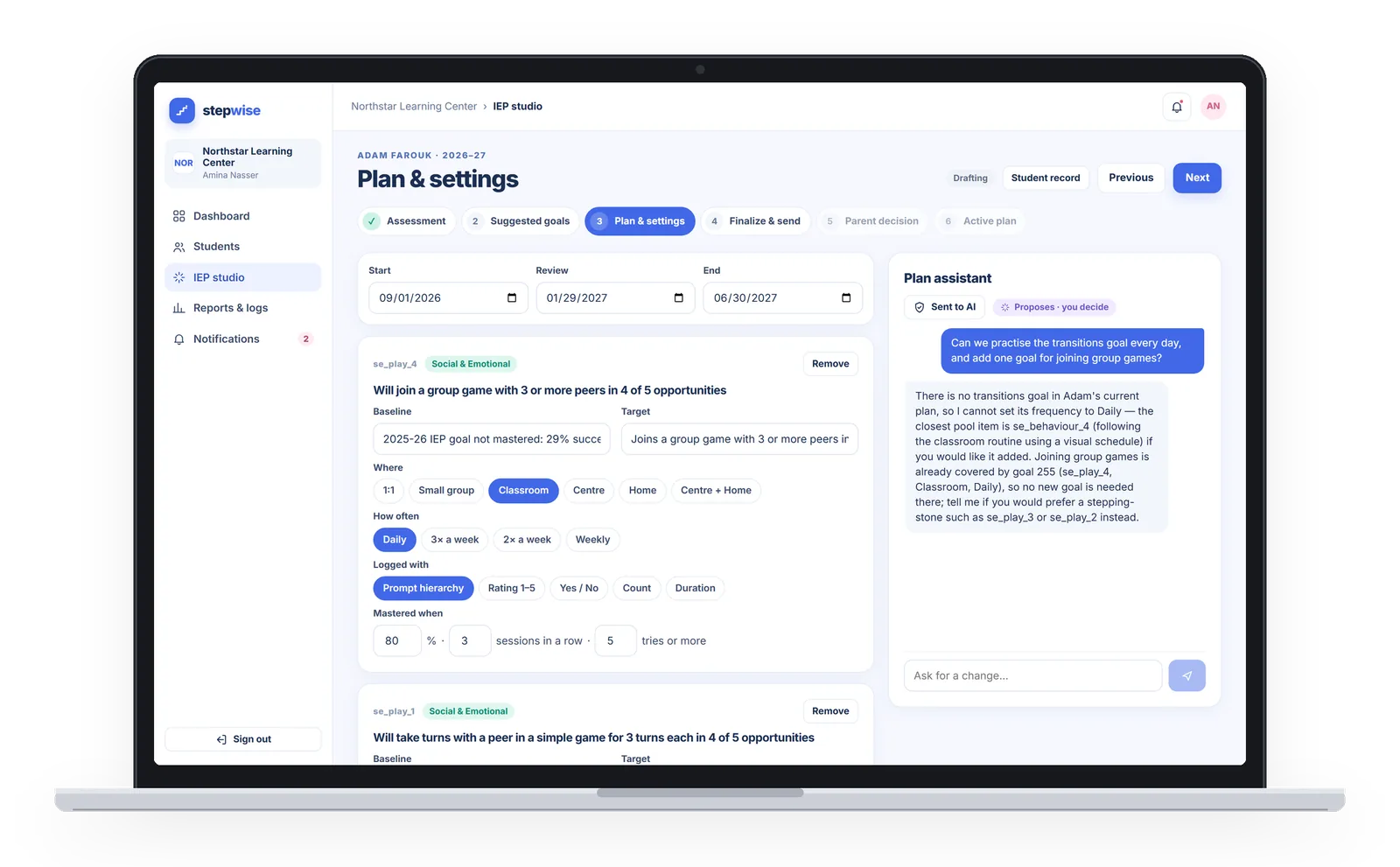
Plan & settings
For each goal: where it is worked on, how often, the target and the mastery rule. The plan assistant chat can propose changes, and you accept or reject each one.
-
Stage 4
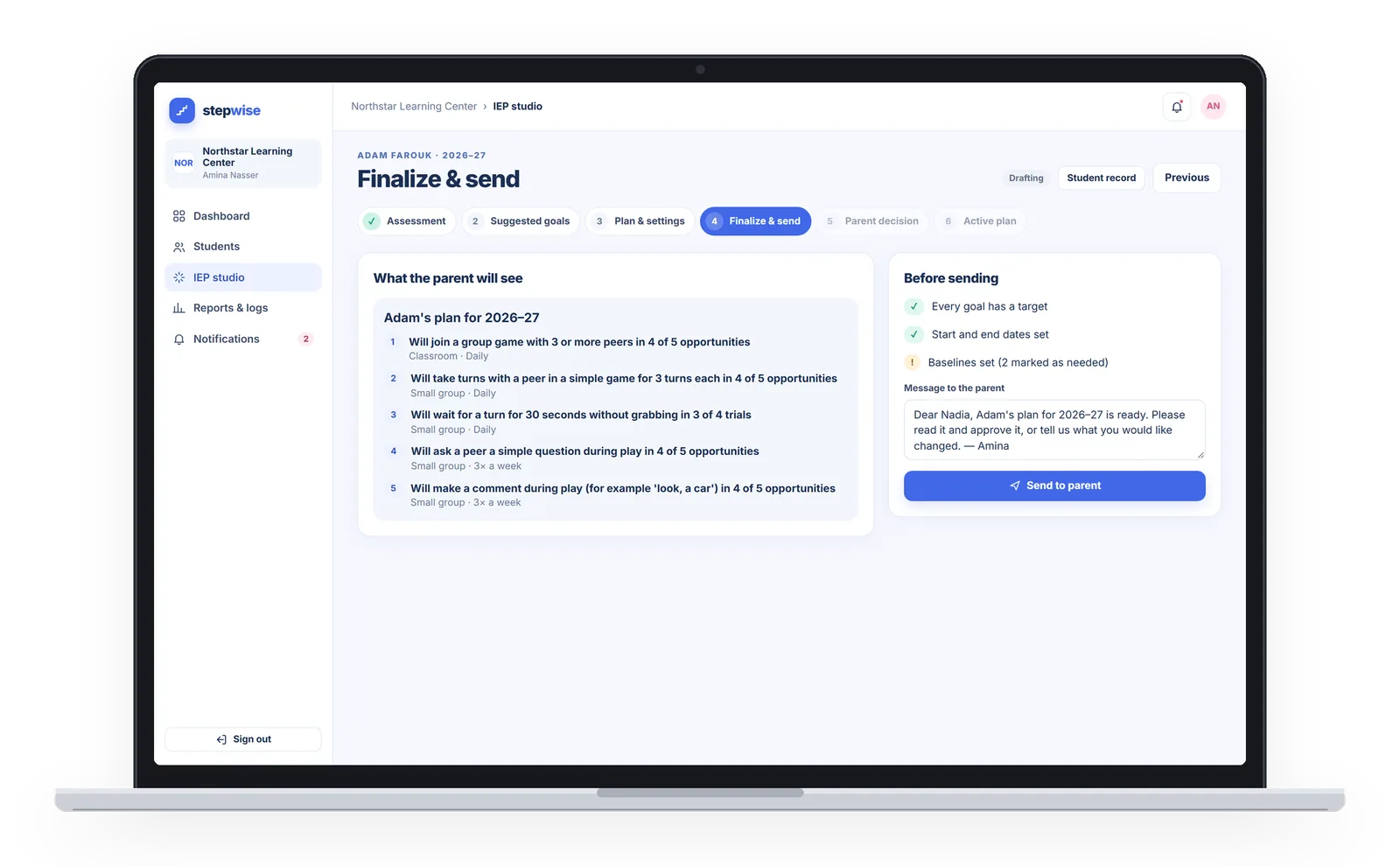
Finalize & send
The finished plan goes to the family for their decision.
-
Stage 5
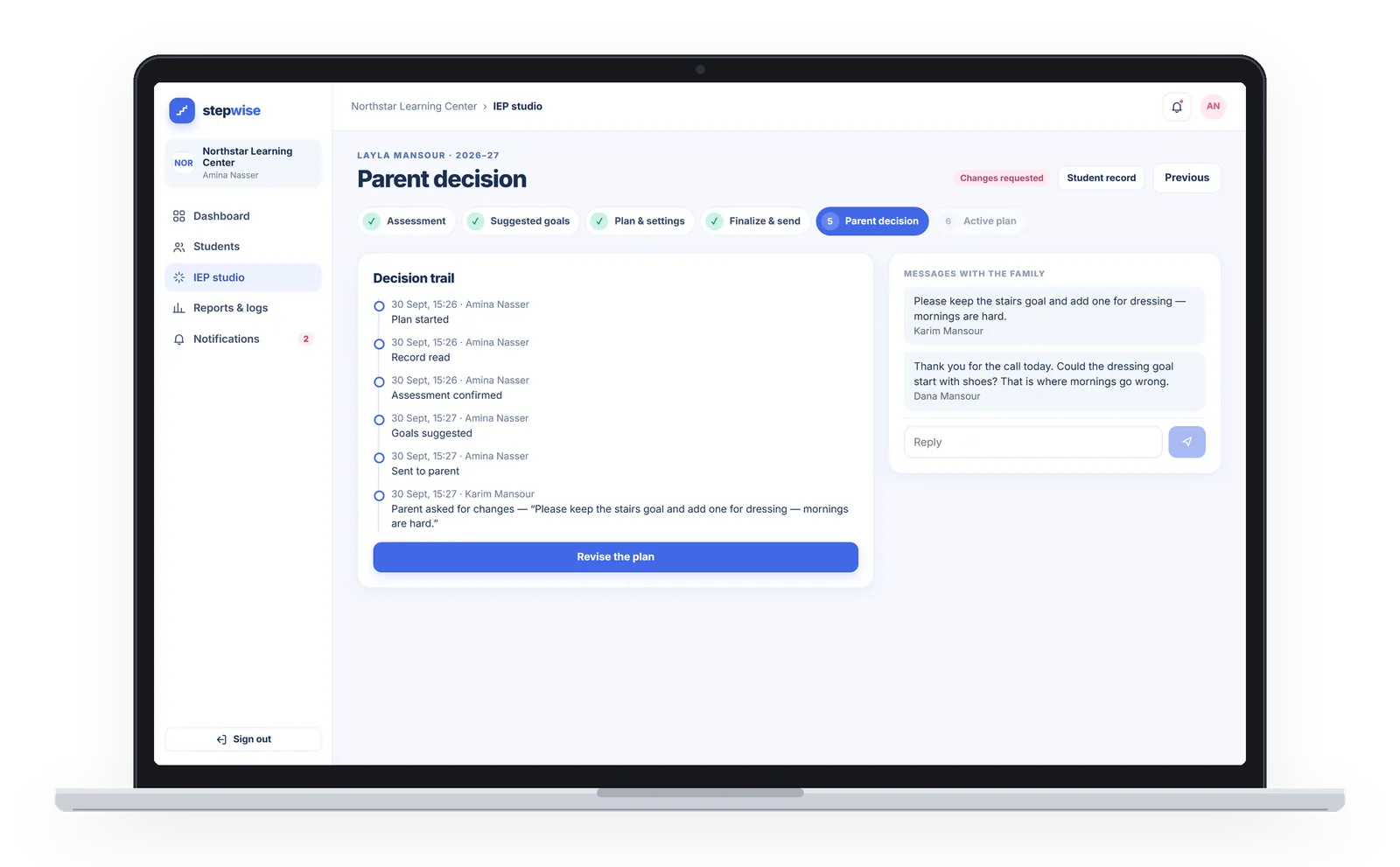
Parent decision
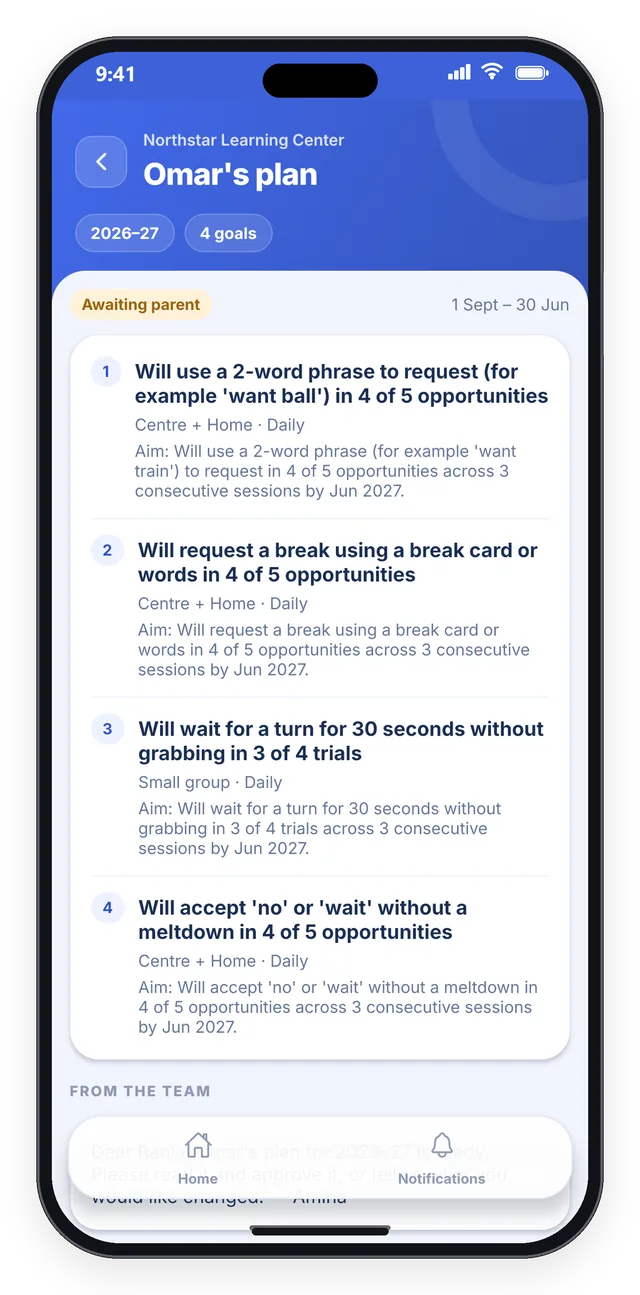
Parents review the plan on their phone and approve it, or request changes. Each decision stays with the plan.
-
Stage 6
Active plan
The approved plan’s goals wait on its claim board for staff to claim them.
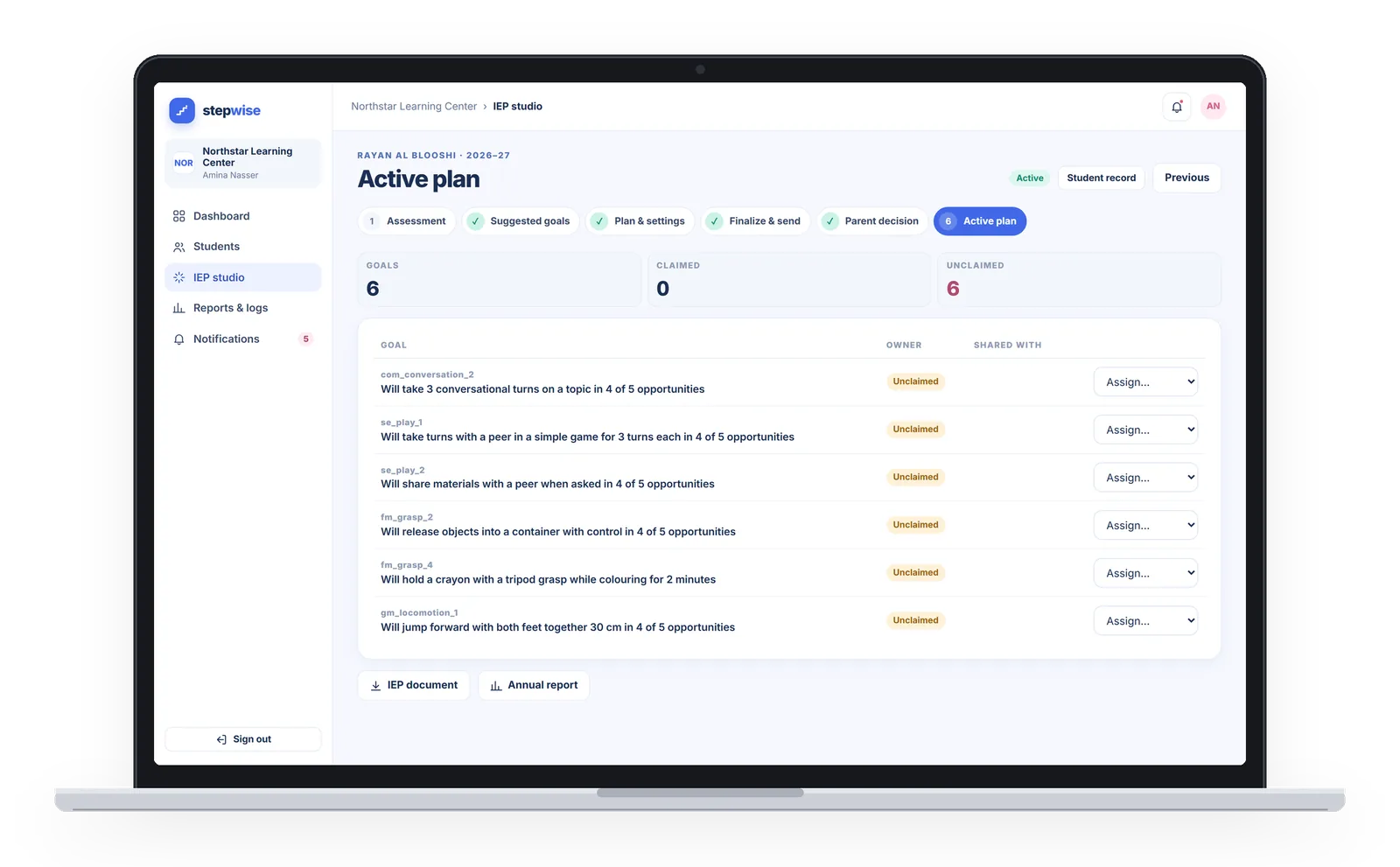
Everyone hears what needs them. Notifications arrive in the app’s bell and by email.
Staff claim their goals
Every goal ends up with the person who works on it.
Therapists and teachers, with the coordinator- Therapists and teachers claim the goals they will work on.
- The coordinator can assign a goal to someone, or override a claim.
- Today is where each session starts, on the phone or in the web app.
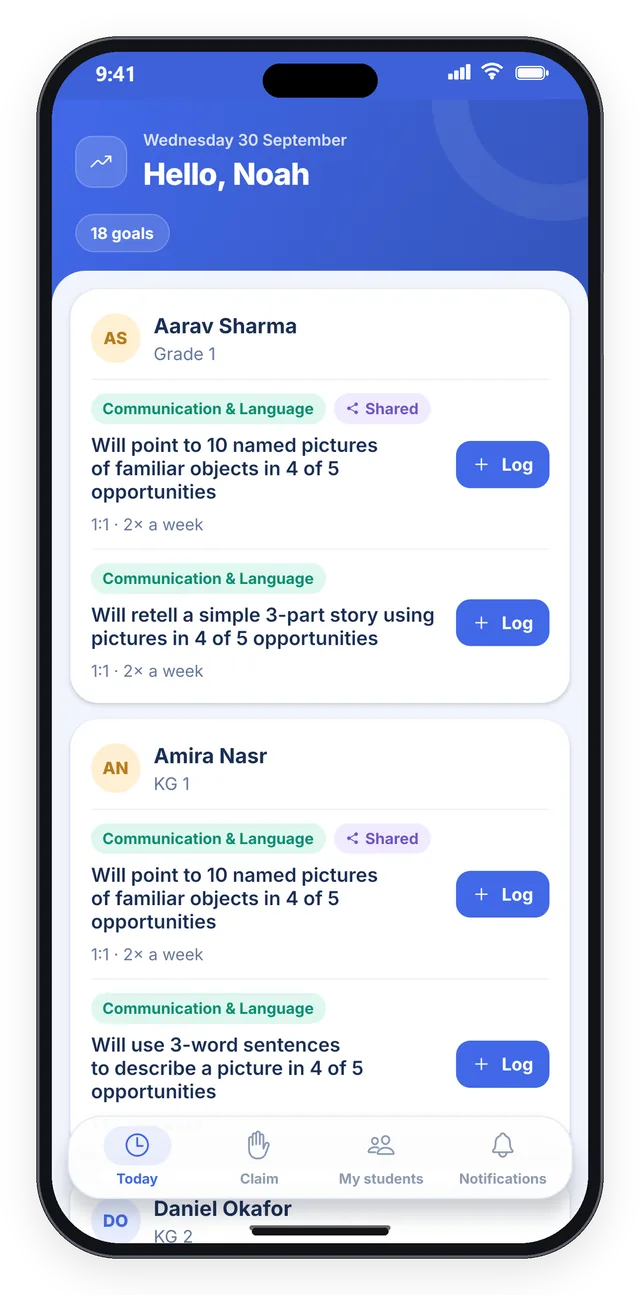
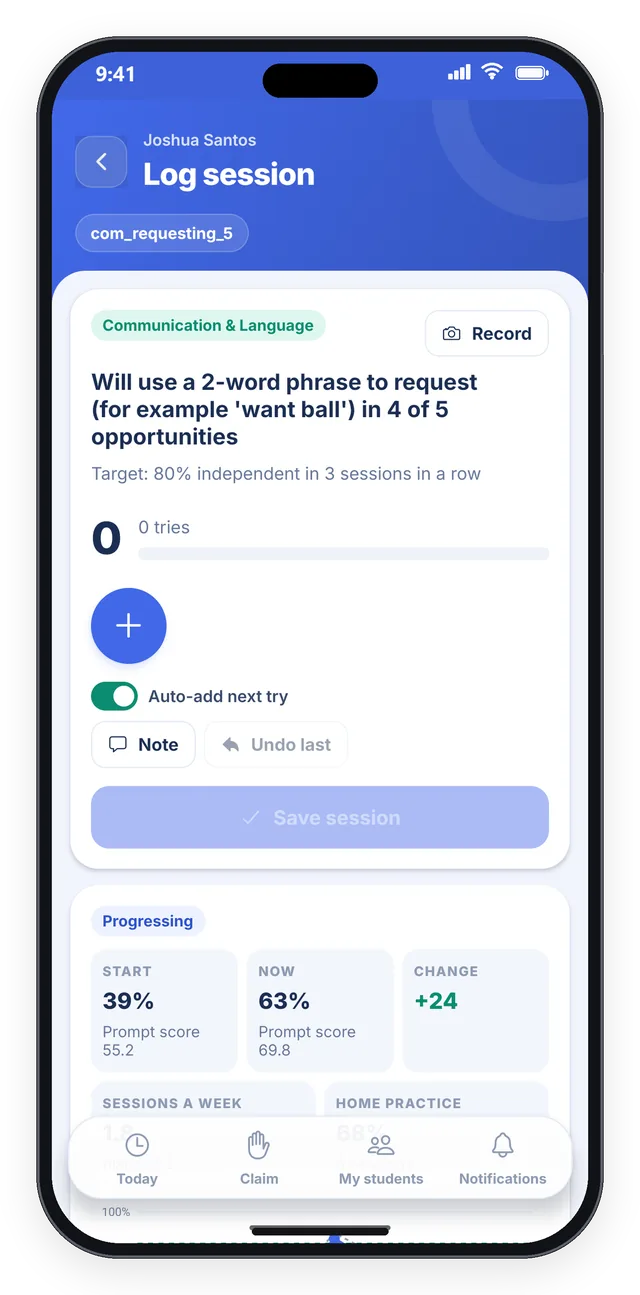
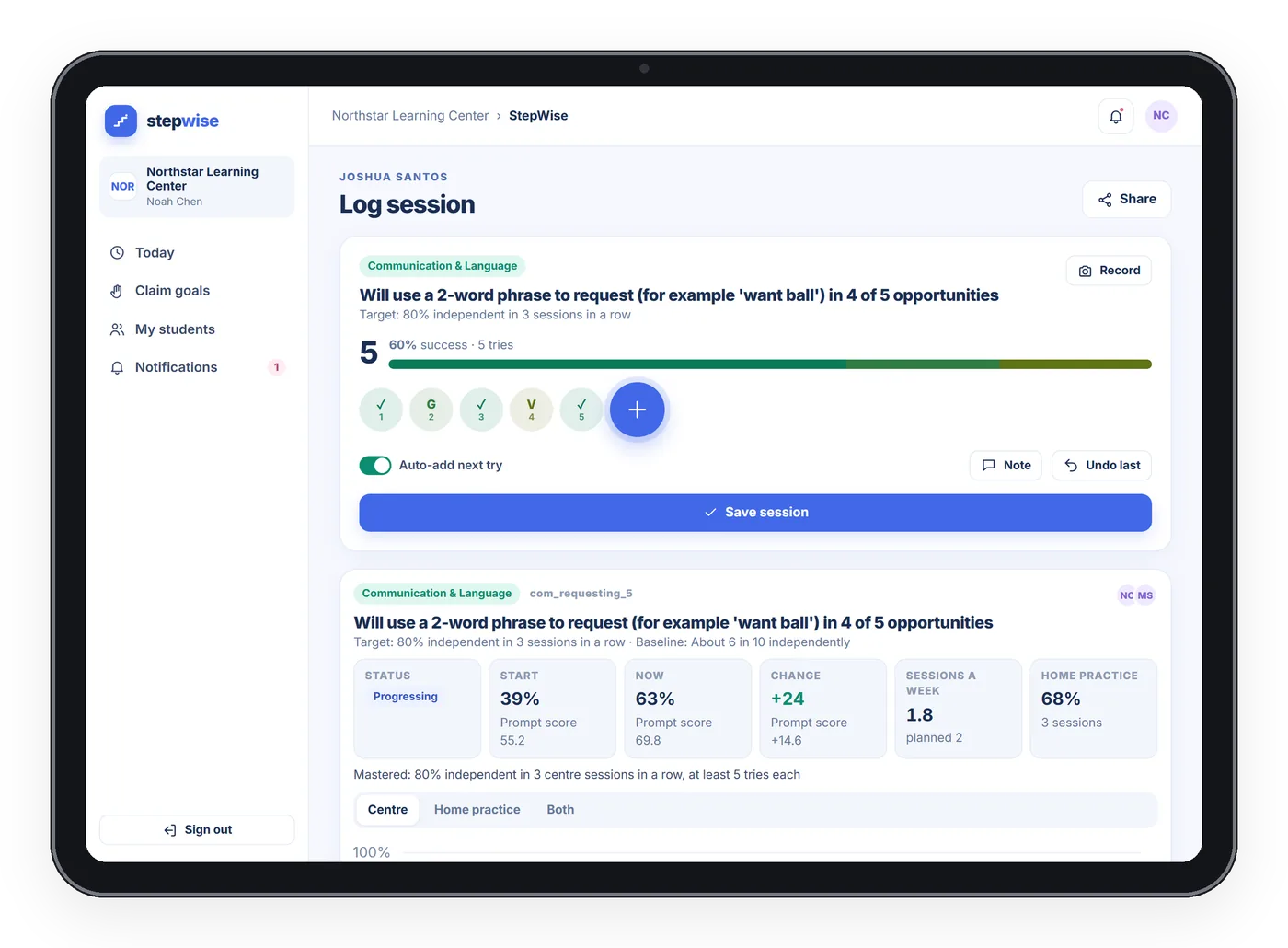
One tap per try
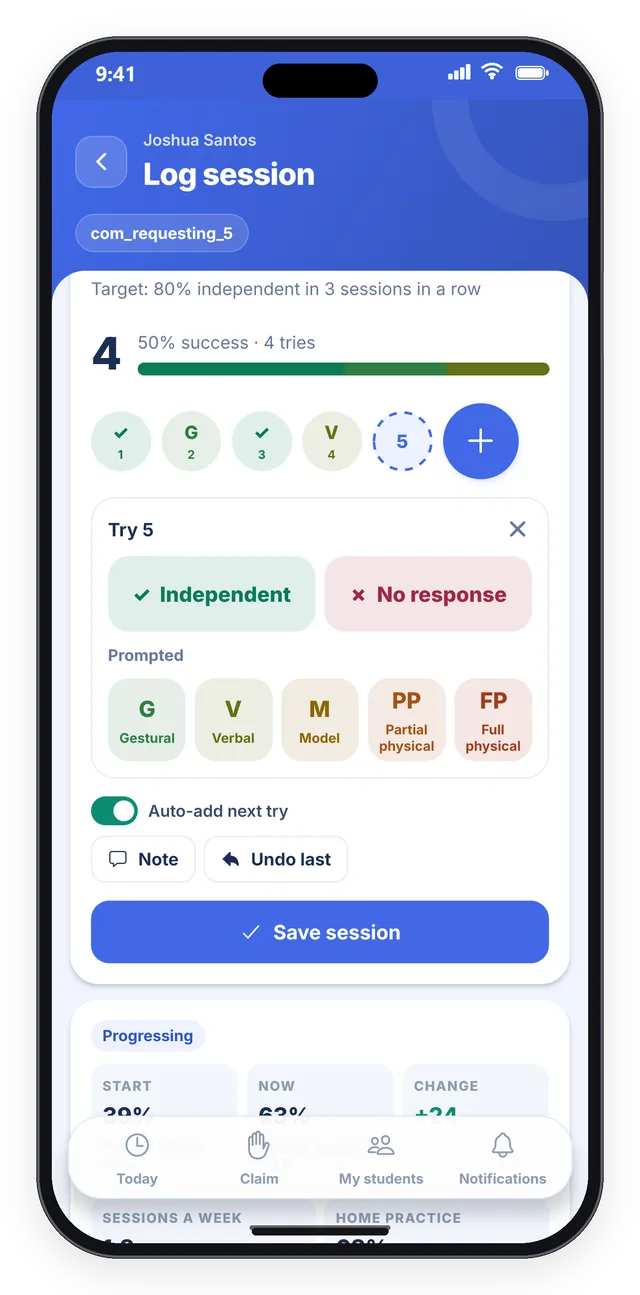
Therapists log while they work. ⊕ adds a try, and one tap answers it.
Therapists and teachersWith the prompt hierarchy, most independent first:
- Independent
- Gestural
- Verbal
- Model
- Partial physical
- Full physical
- No response
Or with the goal’s own response set:
- Count
- Duration
- Yes / No
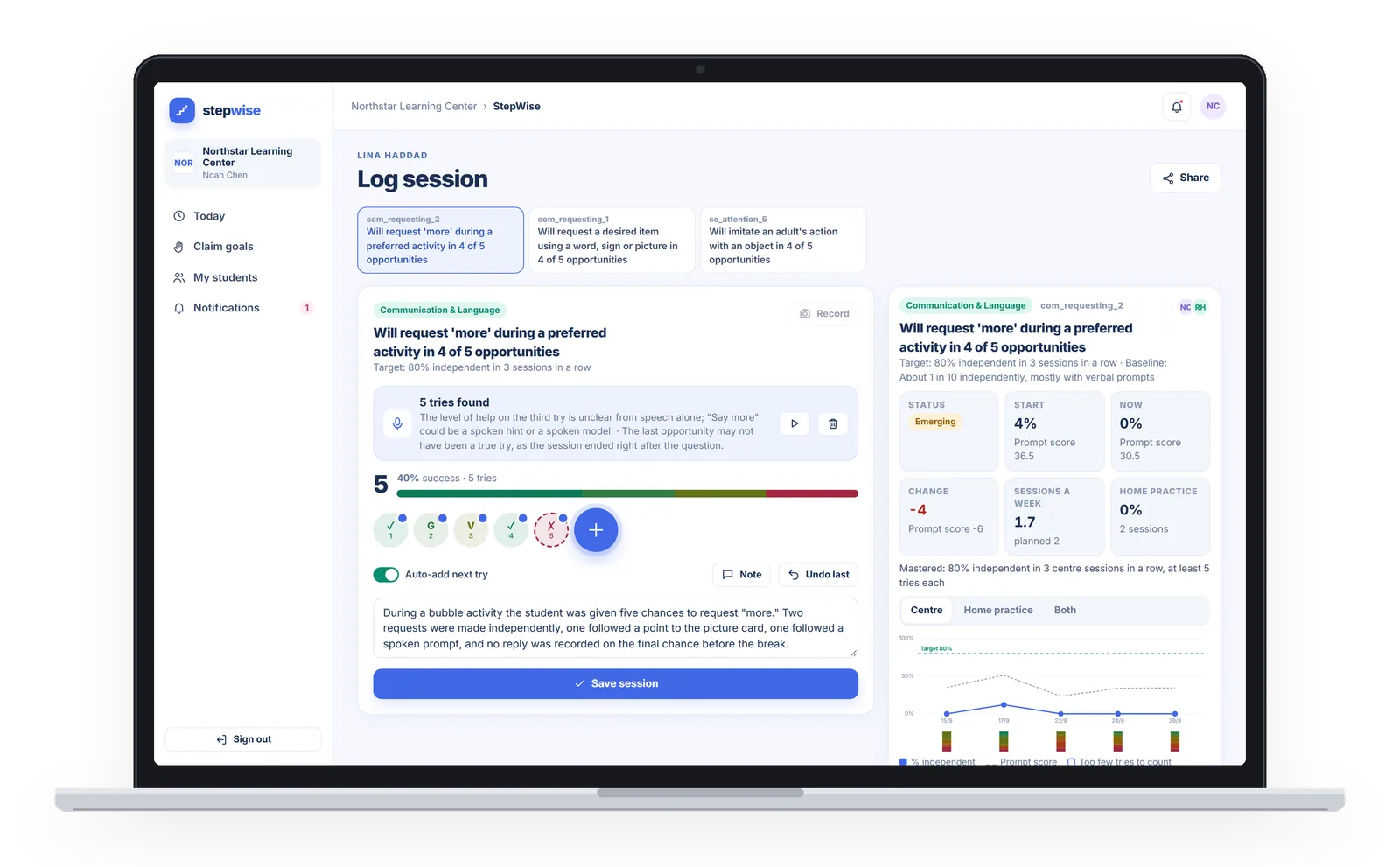
- Record or upload a clip instead, and the assistant proposes the tries for a person to confirm. It uses only the speech, transcribed inside your centre’s own system, with names, contact details, ID numbers and addresses replaced before any AI step.
- Clips are deleted after 180 days. The tries stay.
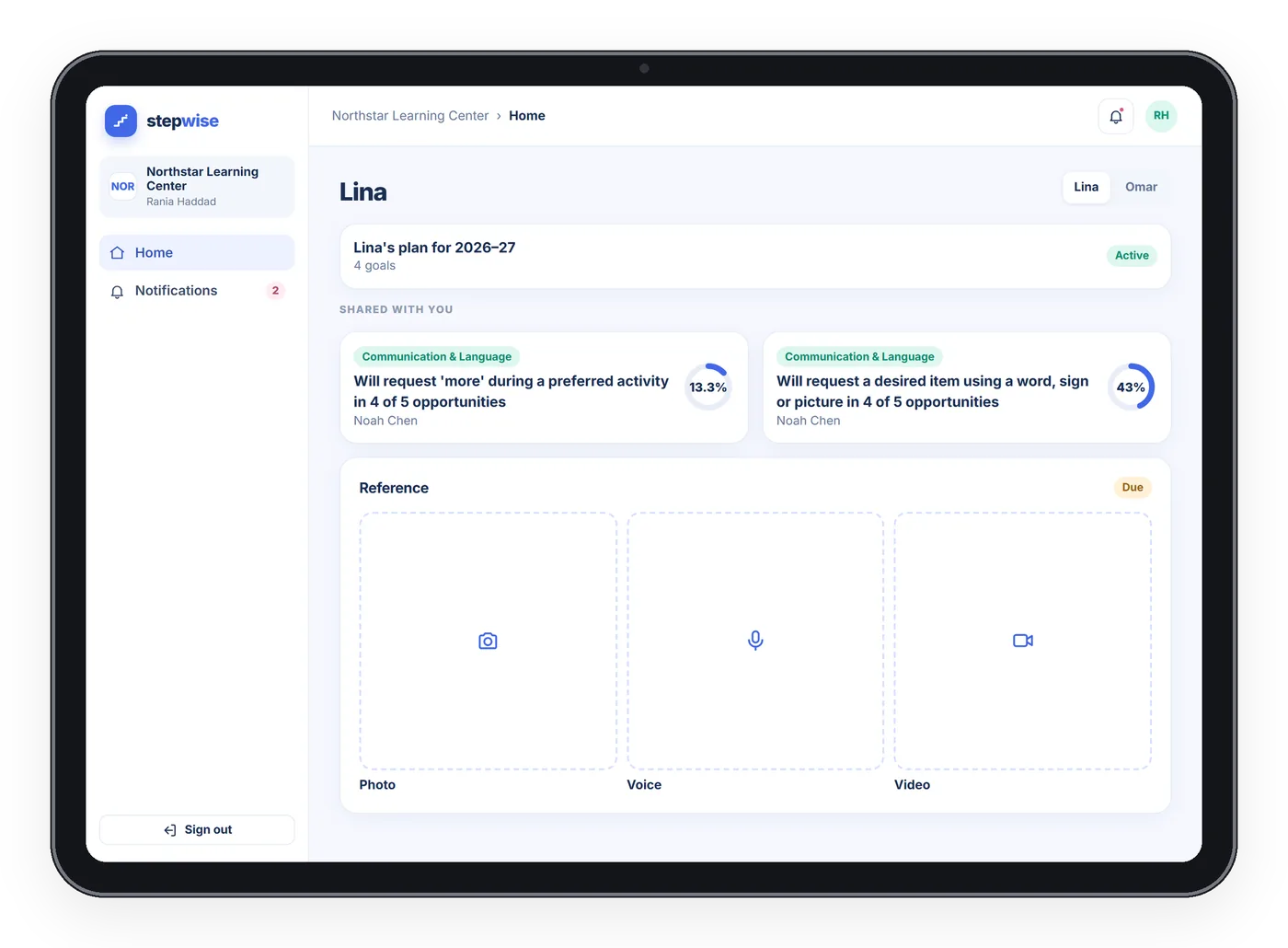
- Staff can log in the web app too, on a laptop or tablet.
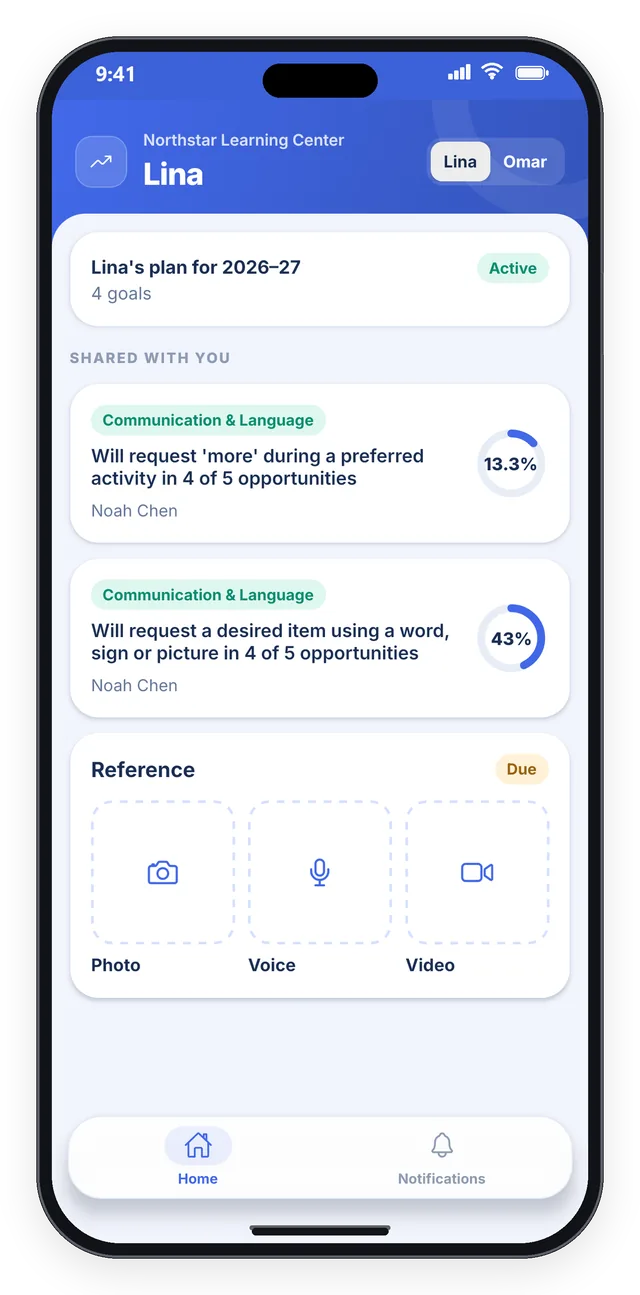
Home practice, shared with families
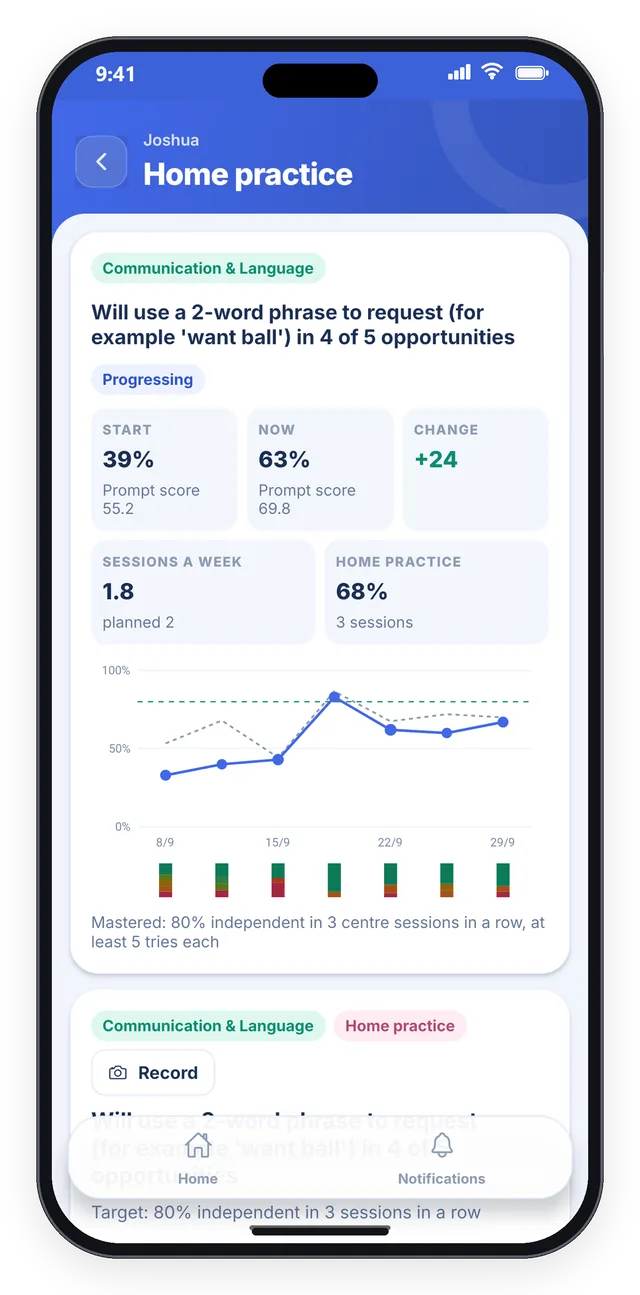
Parents work on the same goals at home, and log it where the centre can see.
Parents, with the centre- Share a goal with a parent and it appears in their app.
- They log home practice there. It is shown alongside centre sessions, and never decides mastery.
- Parents see progress only on the goals shared with them, and only for their own children.

Results you can defend
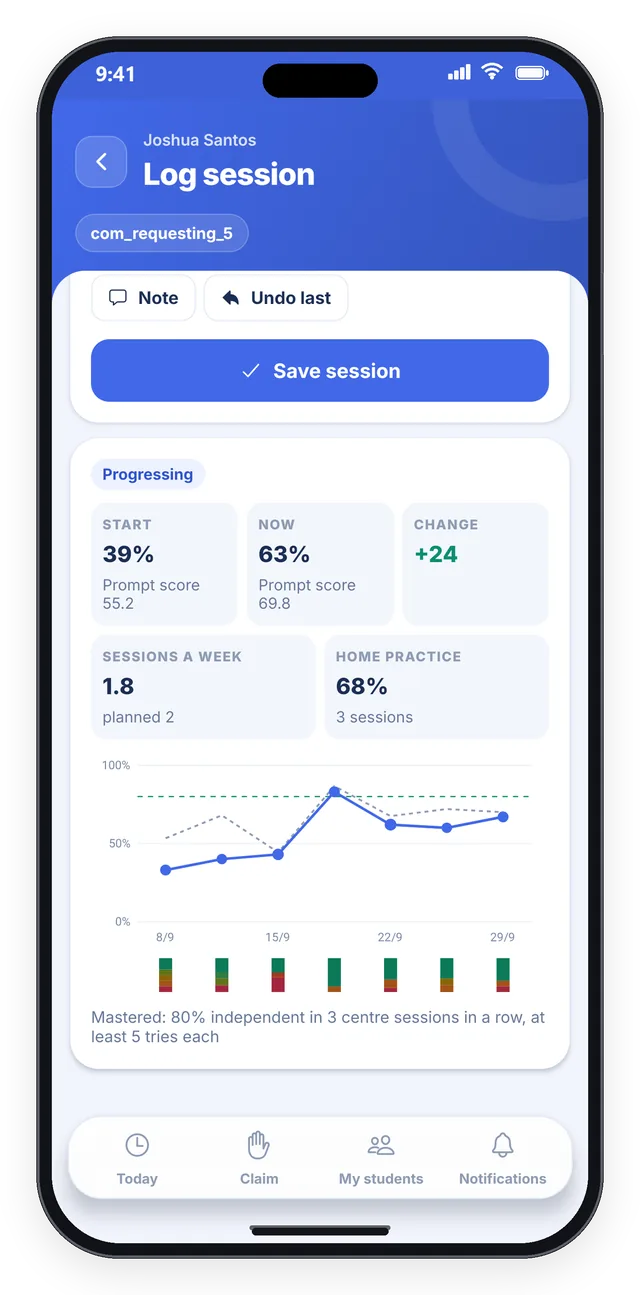
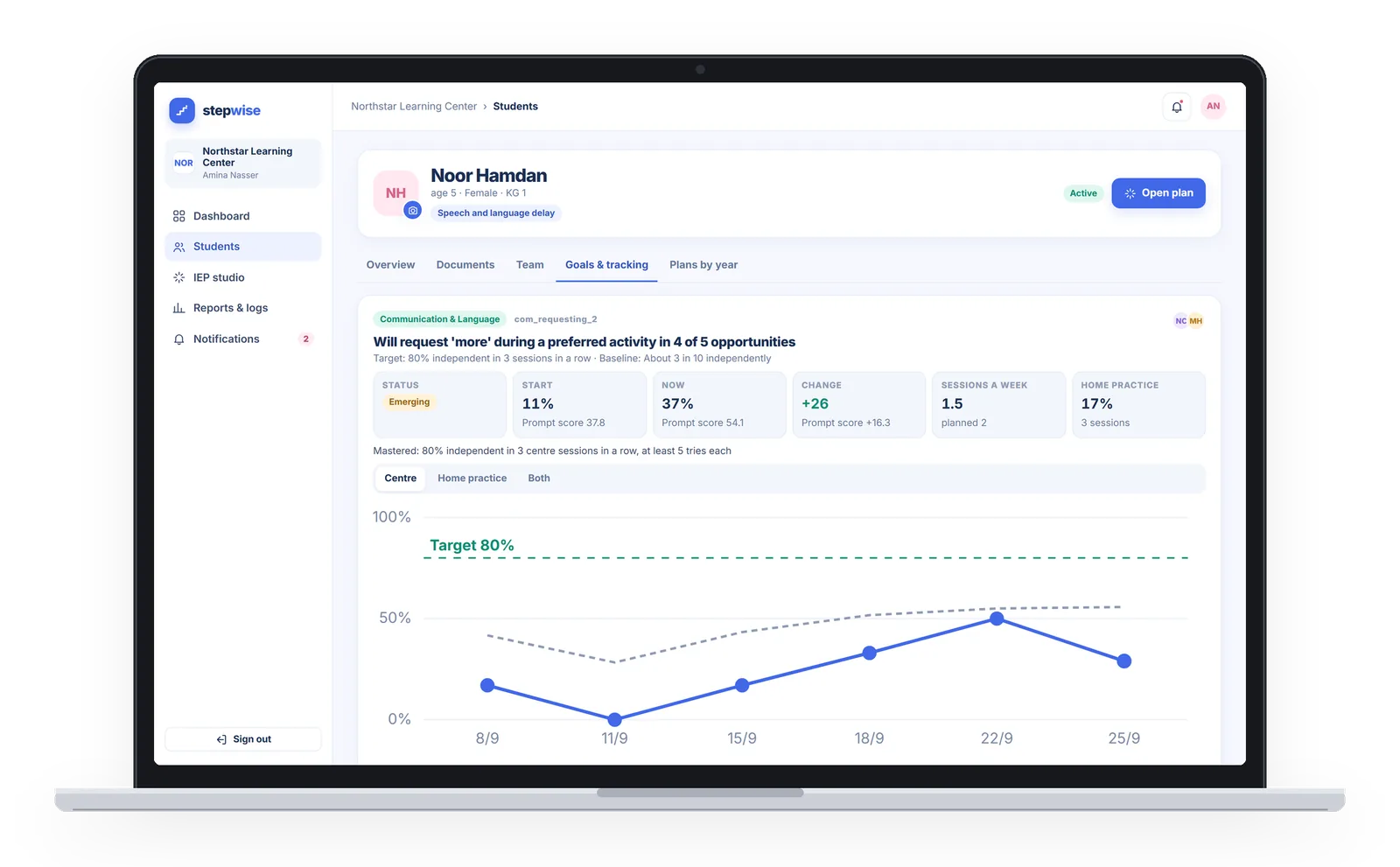
Mastery follows a clear rule, and progress is worked out from the tries your team logs.
Worked out by StepWise, for everyone on the team- Mastery, by default, is 80% independent across 3 consecutive centre sessions of at least 5 tries each. The rule is set per goal while the plan is drafted.
- The prompt-level score, from 0 to 100, shows prompting fading over time.
- Home practice is shown alongside, and never decides mastery.
- Corrections to a logged try need a reason.
Reports, dashboards and exports
The paperwork comes out of the data your team already logged.
IEP coordinator and centre admin- IEP and annual report PDFs with charts, in your centre’s language. Arabic reports read right to left.
- The AI drafts the annual summary. Your coordinator edits it and shares it with the family.
- A centre dashboard, and logs you can export to CSV or Excel.
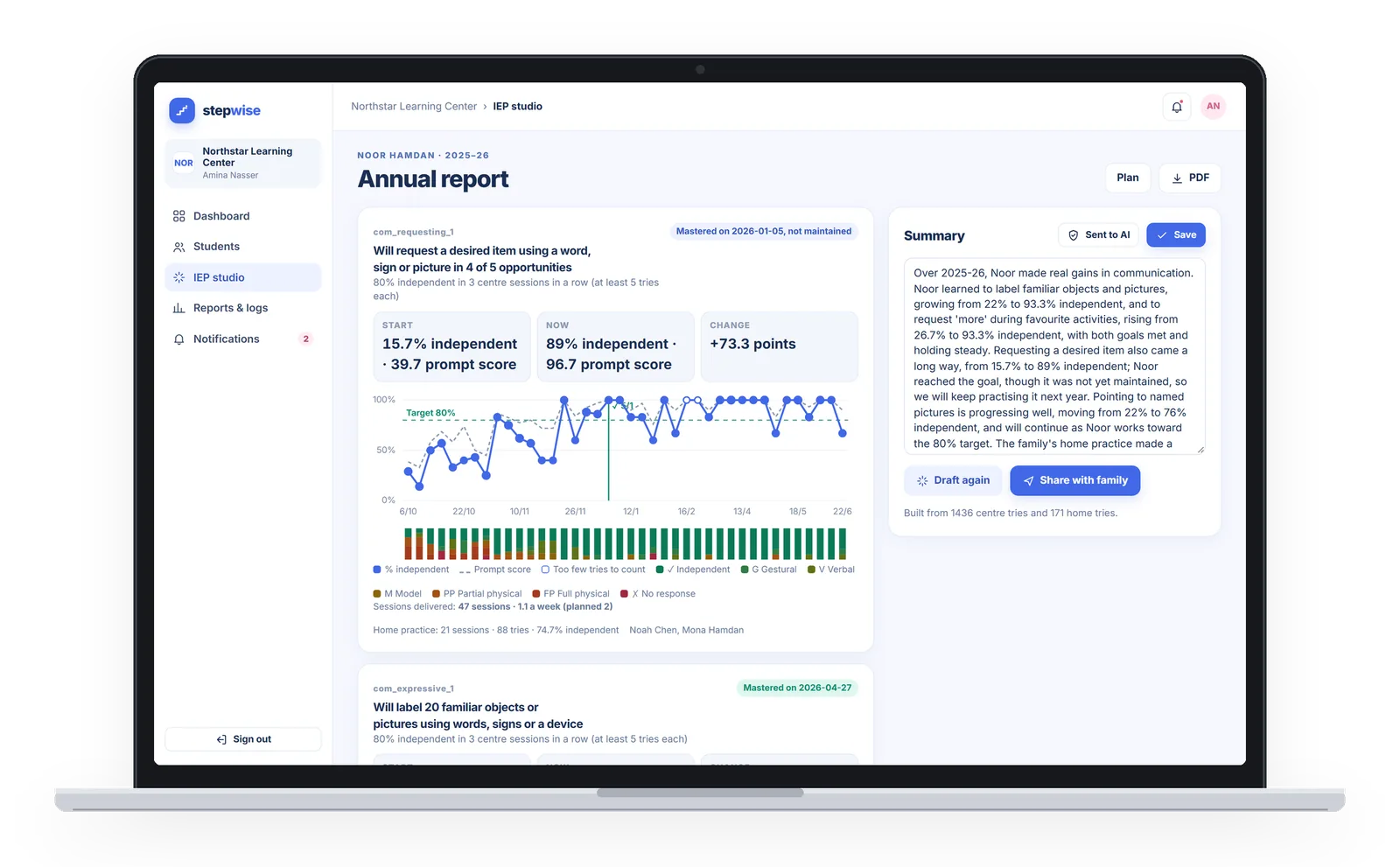
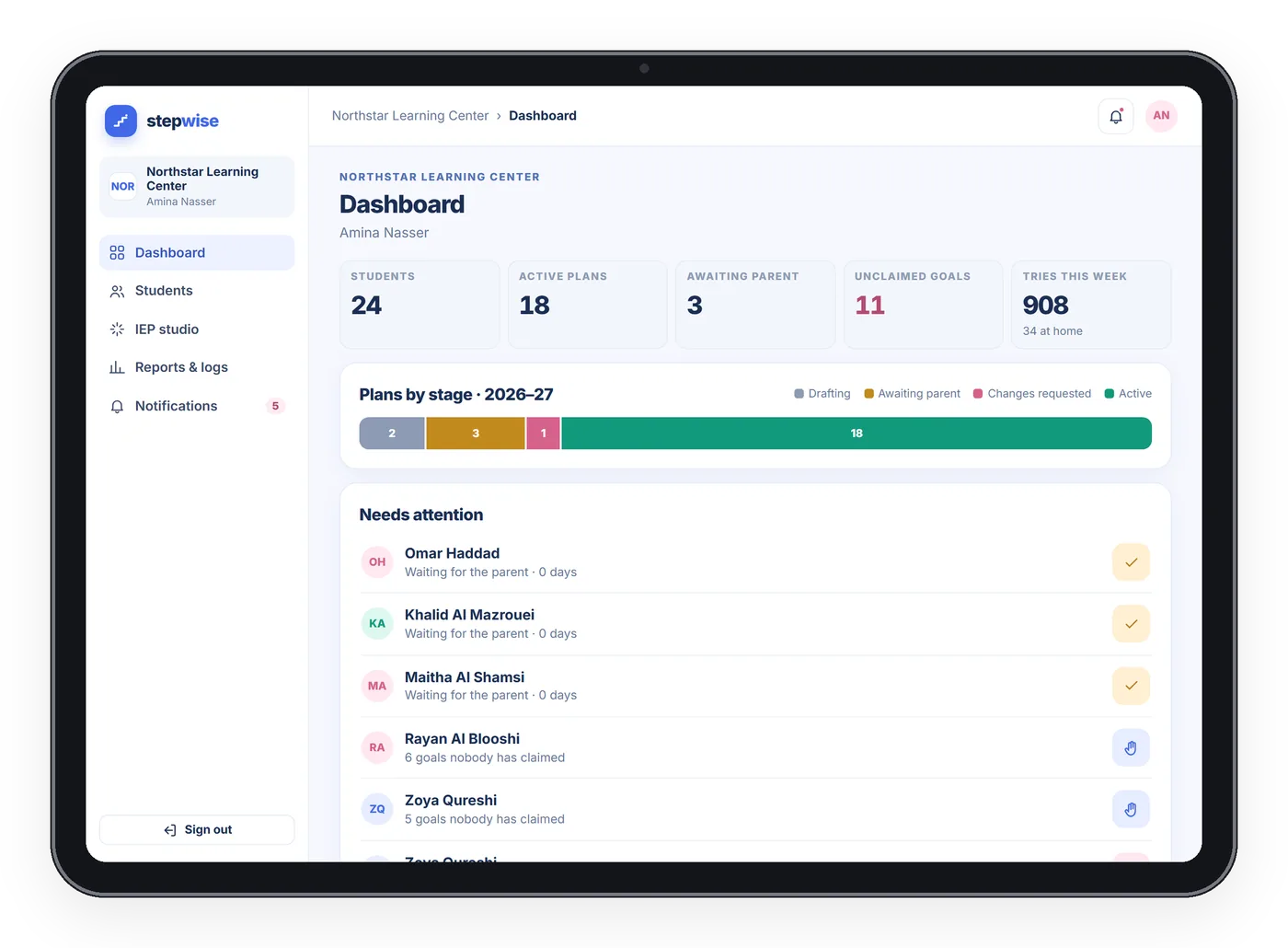
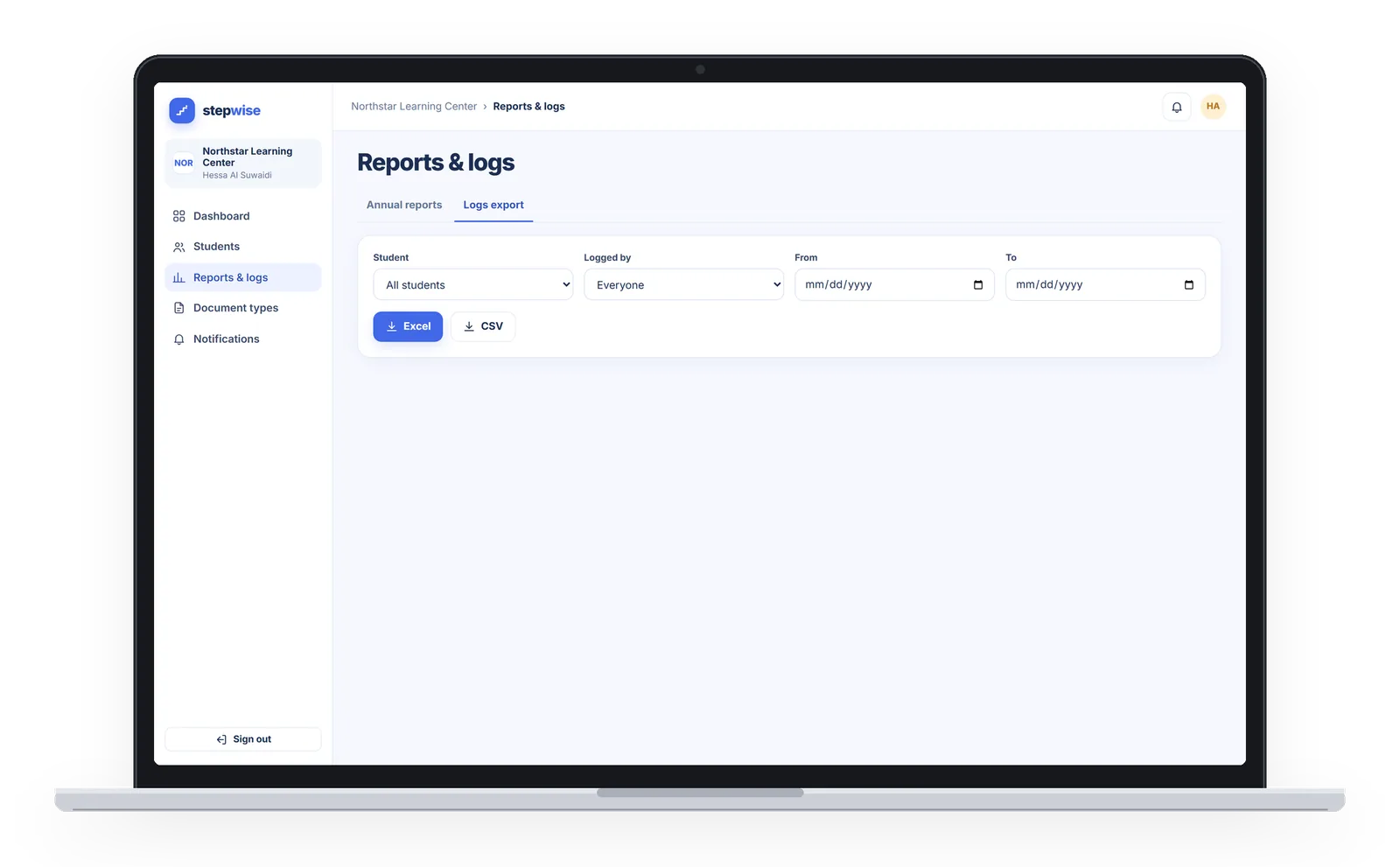
In your centre’s language.
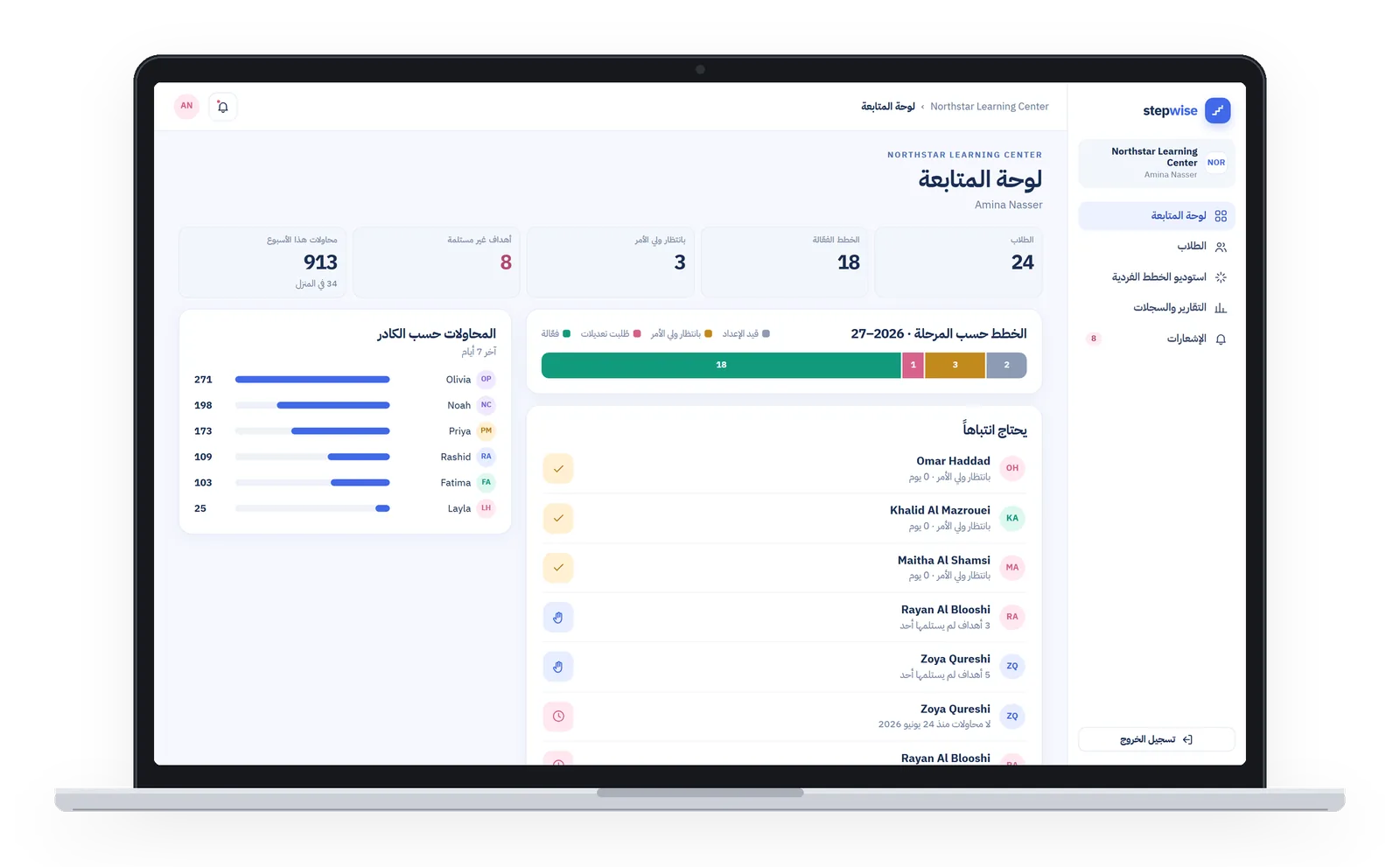
Each centre runs in English, Arabic or Malay. In Arabic, the app and its reports read right to left.
- English
- العربية
- Bahasa Melayu
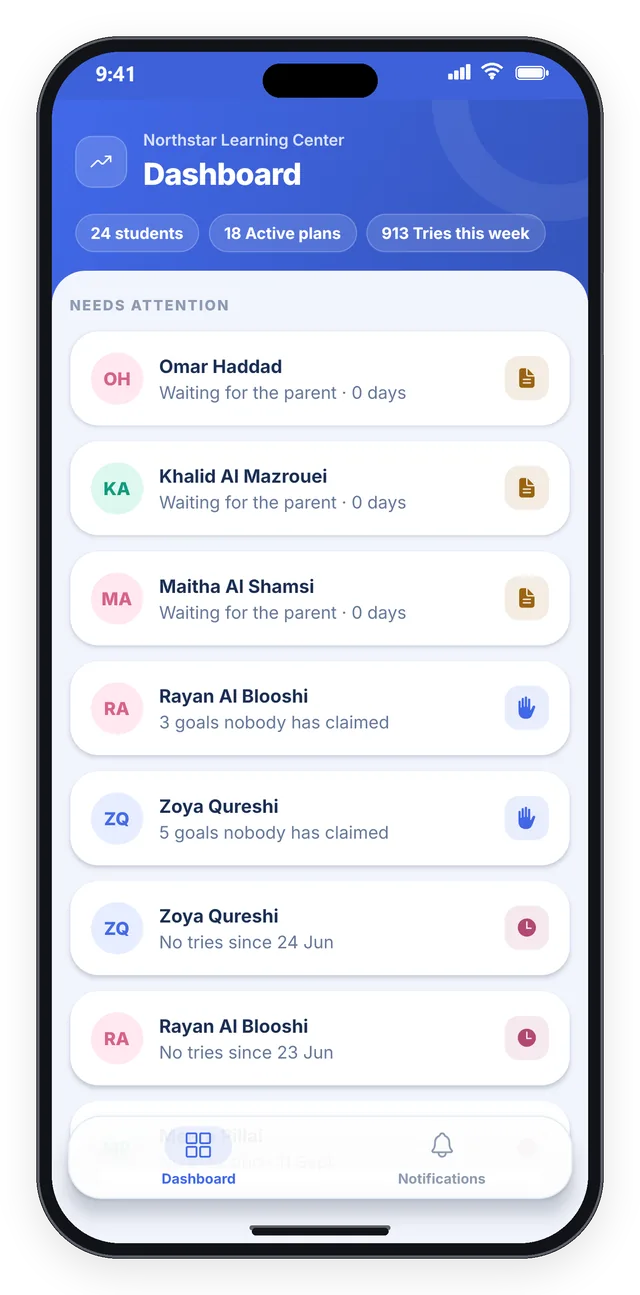
The overview, on the phone.
Coordinators and centre admins can check the overview and recent notices from their phone.
Year two starts where year one ended
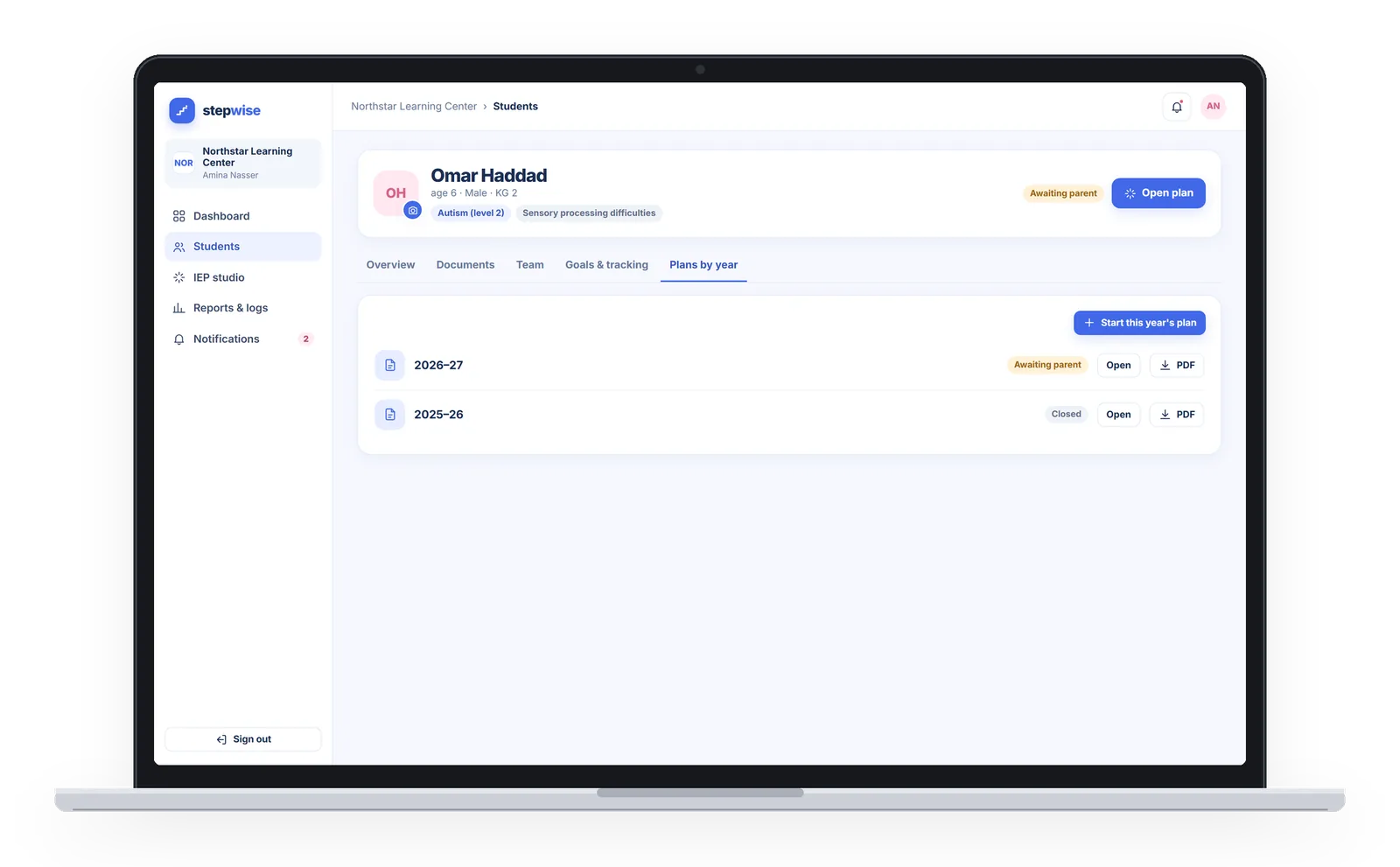
When next year’s plan is drafted, goals not mastered last year are put forward again and mastered ones are left out, so the new plan starts from real history, not a blank page.
IEP coordinatorGoals worked on through the year, with every try on record.
Unmastered goals are put forward again for the new plan; mastered ones are left out.
See each step with your own team.
We will walk you through the studio, the logging pad and the reports, and answer your questions about setup and data.